Find Out How

Creating a New Browser Action recording
|
Prerequisites
Additional prerequisites for HTTPS sites:
Self-signed certificates are supported, provided that these two requirements are met. |
|
|
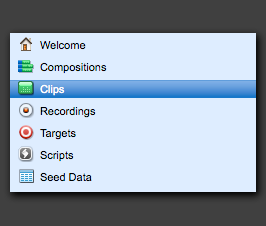
Steps: In order to create a Browser Action recording, please follow these steps: Creating a New Browser Action takes place in the Clip Editor. To create a new test clip, navigate to the Central list > Test Clips. Click the New button. —Or— Click the New drop-down and then select New Test Clip. |
 |
|
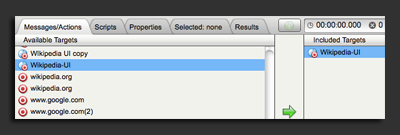
The Clip Editor displays. Choose the WebUI/Ajax target that you wish to test from the Available Targets list. In this example, we will use the Wikipedia Target. |
 |
|
WebUIAjax targets are identified by this icon. |
 |
|
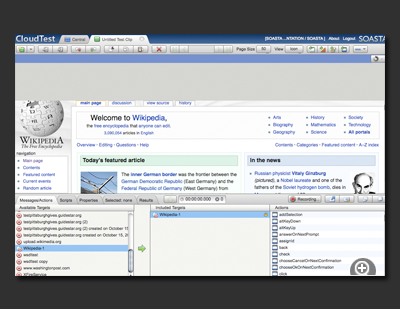
The Web page that you are testing appears in the middle section of the Clip Editor. You are now ready to start recording. |
 |
|
As you take browser actions in the Web page being tested, they will be added to the test clip. Some typical browser actions are clicking on links and typing in inputs. Start by clicking on the English option on the Wikipedia page. |
 |
|
The following click action will appear in the test clip. |
 |
|
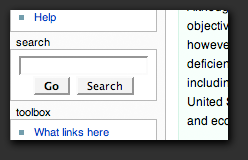
Click the Search box in the Wikipedia page. |
 |
|
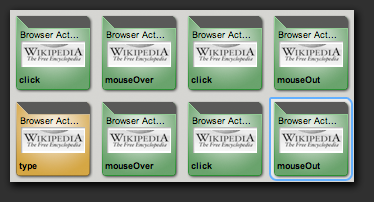
Type in a search word such as SOASTA and the following browser actions will be recorded. As you continue to take browser actions in the Wikipedia page, they will continue to be added to the test clip. While recording, you can edit the test clip by deleting unwanted browser actions or duplicating actions to create new ones. |
 |